
Time to tidy your station, built into your schedule
For example: a massage takes an hour, but you need an extra 15 minutes because the station has to be cleaned. A client booking online shouldn’t see 1 hour 15 minutes, just the hour, but your schedule has to be blocked for the cleaning as well.
From now on you can easily set up your services so that a client booking on their own sees a one-hour massage, while in your calendar the appointment takes 75 minutes and nobody can squeeze into those 15 minutes.
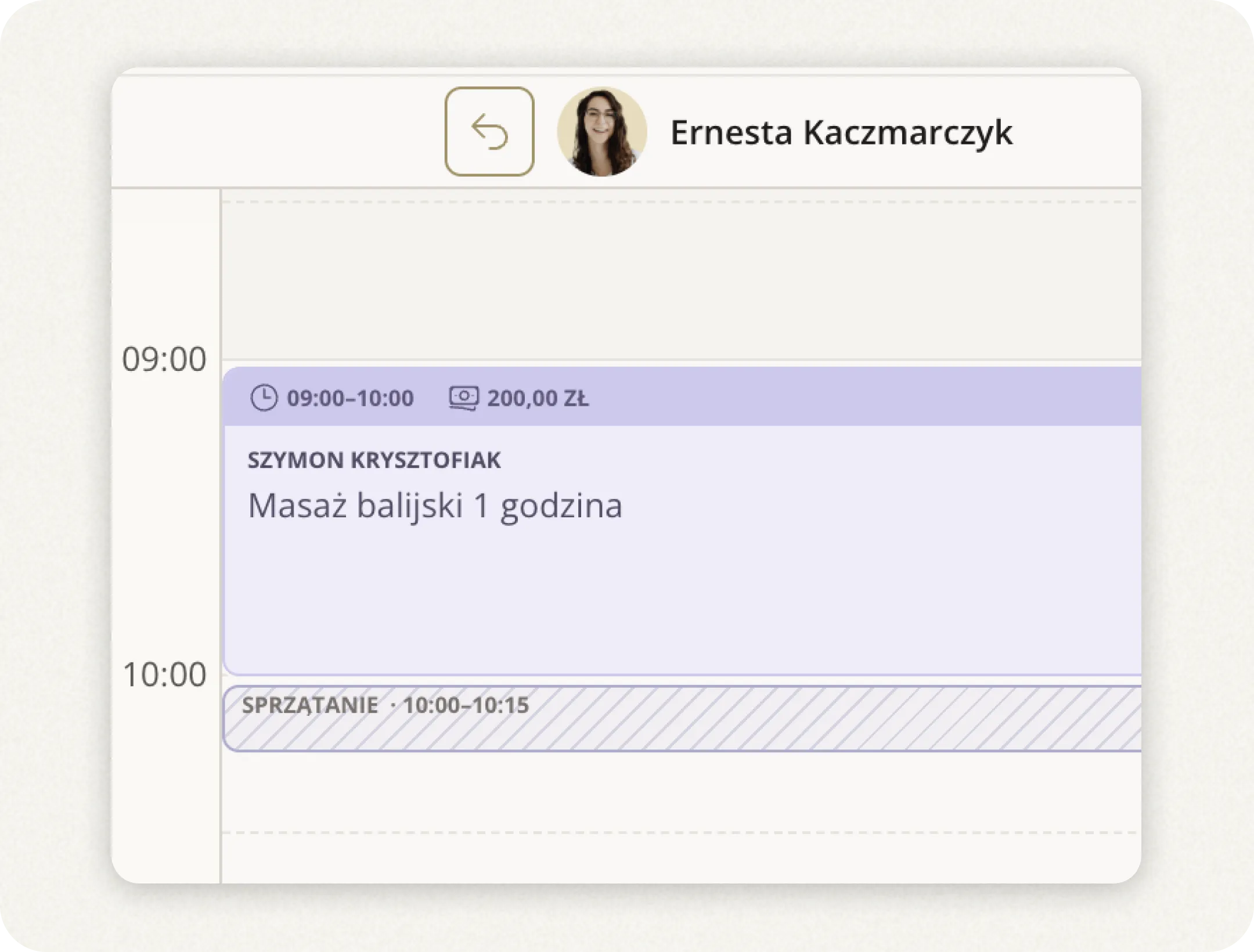
How to turn on a technical break: open the service and switch on a break before or after the appointment. Set its length and, optionally, give it a name.
Where to find it
- Services & prices
- Edit
- Technical break
Thanks, Ola, Darek and Karolina!
Cash and card in one appointment
Iryna told us about the problem: a client pays 150 zł in cash and the rest by card. It would be good to enter that split when finalizing the appointment. Exactly. Now you enter both amounts in one settlement.
Your statistics now show how clients paid. At the end of the day you know right away how much cash should be in the till, without going through appointments one by one.
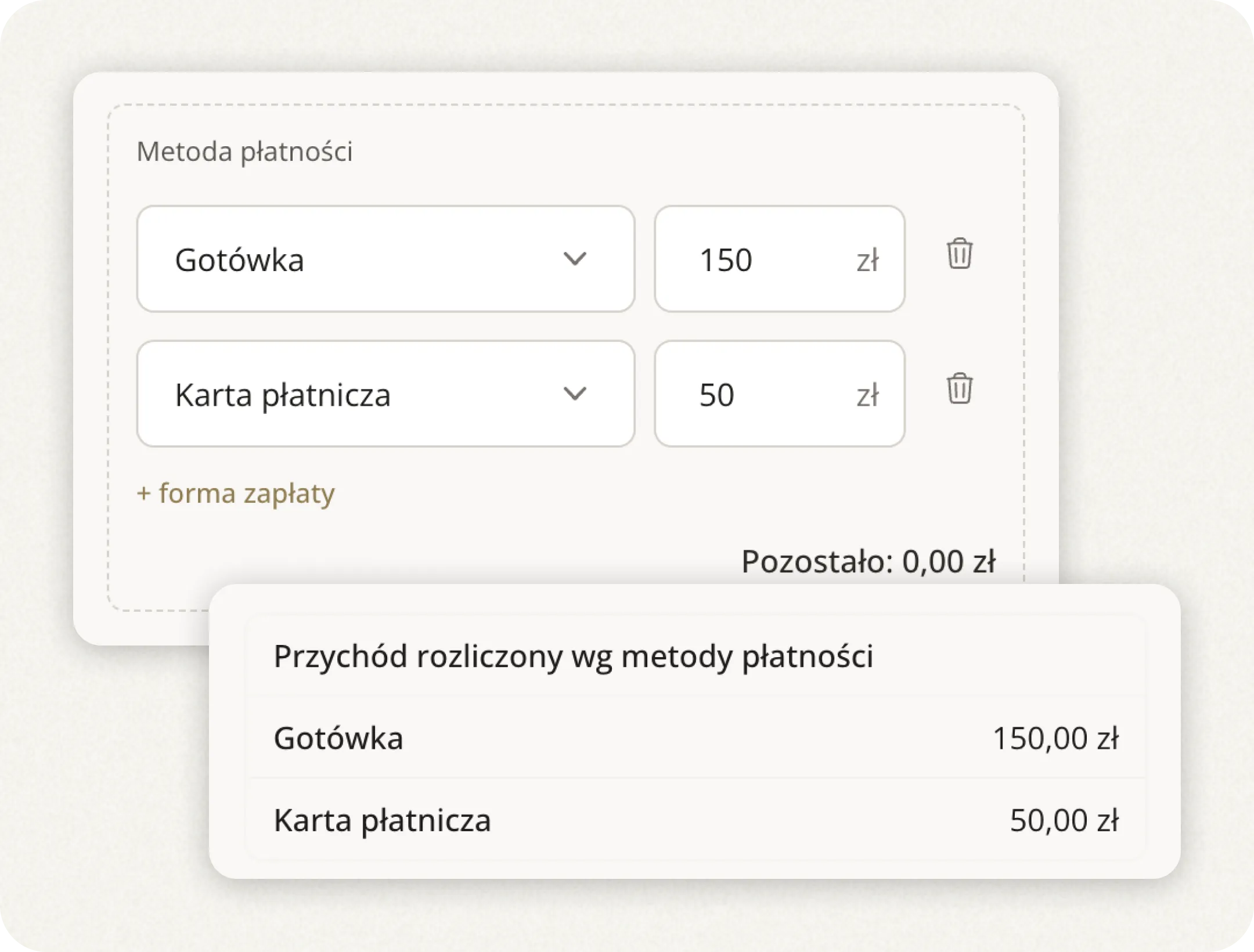
How to do it? When finalizing the payment, add a second payment method to split it between methods.
Where to find it
- Calendar
- Appointment
- Finalize
- + payment method
Also: if you are a VAT payer, you can set a tax rate for each service and see net revenue + VAT in your statistics. Set the default rate once in My salon → Sales. Then set the rate for each service in Services & prices.
Your clients no longer pick times blindly
From now on:
- On your online booking page, days without free slots are greyed out, and the calendar opens straight on the first free day.
- A map with directions is visible. One tap and navigation takes the client straight to you.
- Booking notes from the client. A discount code, a voucher or “it’s my first time” reach you together with the appointment. Ola asked for this.
- Next to each employee you can also see the job title you give them in the app, e.g. “Top stylist”.
Where to find it
- Employees
- Employee profile
- Edit
- Job title
And also two more things
- Thanks to Iwona, the notifications bell is now in the bottom bar of the mobile app, so you get to your notifications faster.
- Changing your hours before the holidays, or have free slots next week? Send one text message to your whole client base instead of writing to each client separately. You can now select everyone with a phone number in one click. You’ll find it in the Clients tab.